Ultrawide vs Dual Monitor: Desk Setup Checklist
By Priya Menon • 10th May
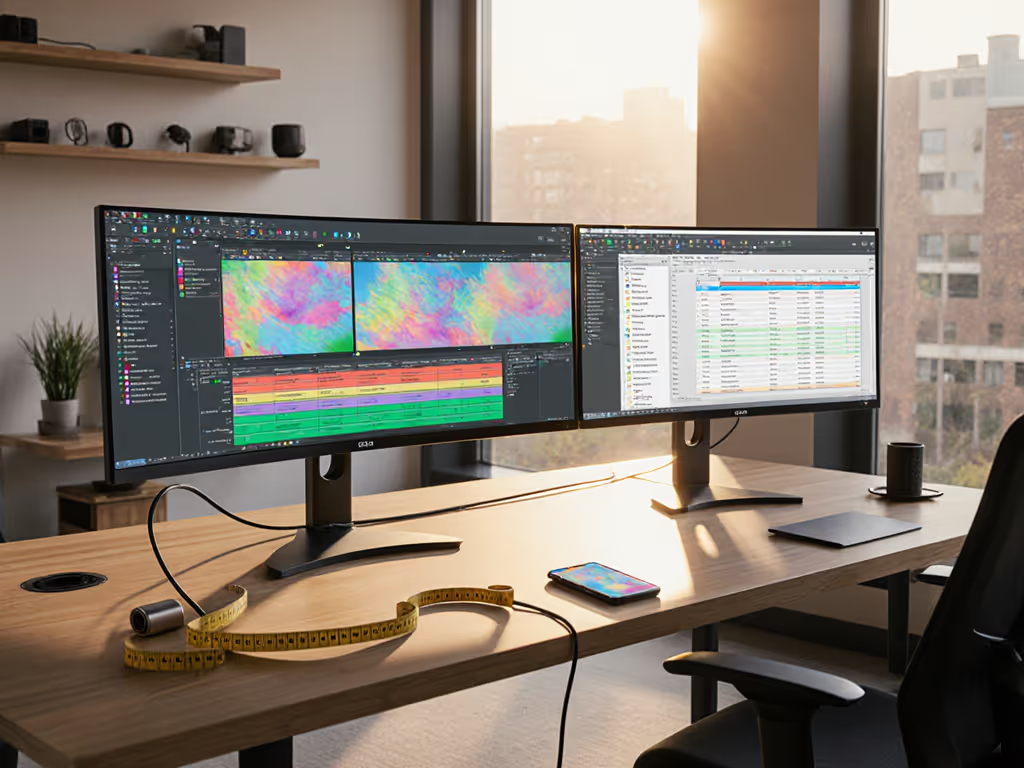
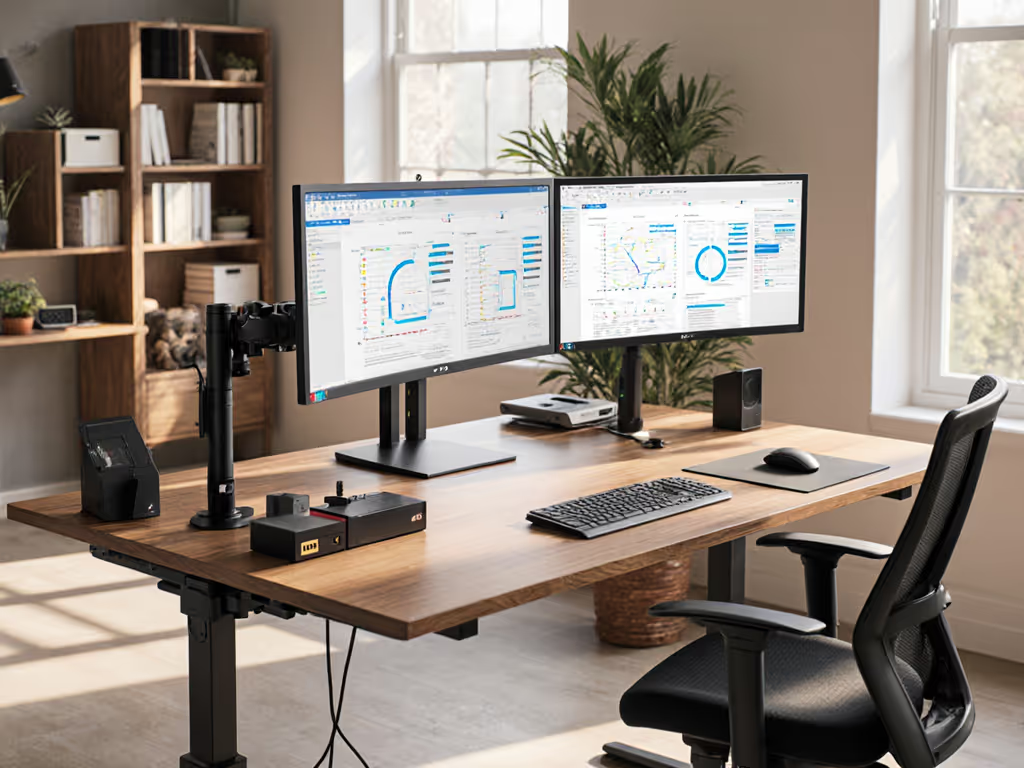
When deciding between an ultrawide and dual monitor setup, the instinct is to compare specifications: resolution, refresh rate, brand. But the real decision lives in your desk dimensions, your cable pathways, and your workflow patterns. Without this groundwork, even a "perfect" monitor becomes a return waiting to happen. I learned this the hard way when I assumed a clamp arm would work on my rental desk, only to find it needed clearance I didn't have. The lesson stuck: start with a fit map; buying gets calmer and cleaner.
This checklist walks you through the comparison on a plane that actually matters: physical constraints, space efficiency, ergonomic alignment, and future scaling. Whether you're torn between a 34-inch ultrawide and two 27-inch 4K panels (or upgrading from a single monitor), these numbered steps replace guesswork with plain-language measurements and safe zones.
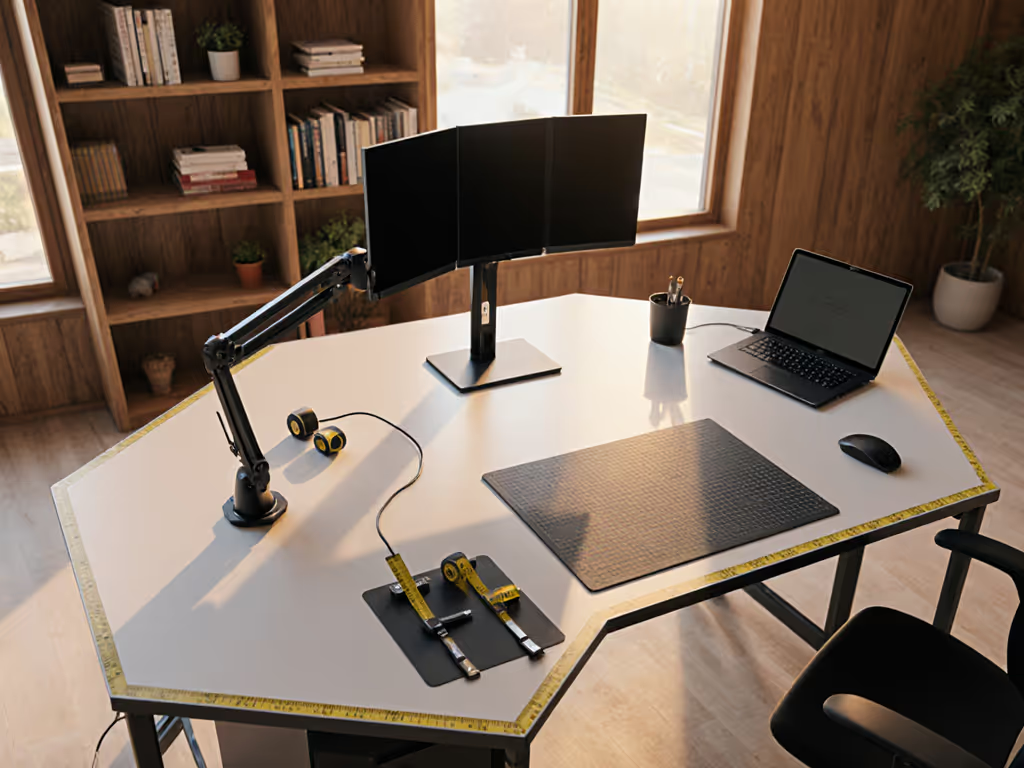
1. Measure Your Desk Depth, Width, and Thickness
Before comparing monitors, map your workspace. The physical footprint of each setup feels different on a small desk, and wrong dimensions are the fastest path to regret.
What to measure:
- Desk depth (front edge to back wall or window, in inches)
- Desk width (left edge to right edge, in inches)
- Desk thickness (to check clamp clearance; thickness typically ranges 0.75 to 1.5 inches)
- Distance from edge to wall (especially if you're clamping a monitor arm or mic boom)
- Crossbar position (if your desk has an underside support, measure its height and width; clamps cannot grip past it)
Why this matters: A 34-inch ultrawide requires ~32 inches of unobstructed width at desk level. Most dual monitor setups (two 27-inch panels) need ~56 inches. Desk depth under 24 inches creates arm reach and viewing distance problems for ultrawides; you'll sit too close, risking eye strain. Clamp-based mounts fail silently if your crossbar is thicker than the clamp's maximum grip or if there's a wall within 2 inches of the overhang zone.
Starter map template: Record these five measurements in a note. This map is your guardrail for every purchasing decision that follows. No guesswork. No "it should fit."
--
2. Compare Physical Footprint: Ultrawide vs. Dual Setup
Once you have your desk blueprint, overlay the footprint of each setup type. To understand how resolution (like 4K) changes accessory and ergonomics needs, see our 4K monitor workspace guide.
Ultrawide monitors (34-inch, 38-inch examples):
- Horizontal span: ~31–36 inches (most ultrawides fit standard desks)
- Vertical height: ~18–20 inches (taller than most 16:9 panels)
- Depth (stand to monitor back): ~8–10 inches (can eat into cable management space)
- Typical weight: 25–40 pounds (requires sturdy arm; cheap arms tilt downward under load)
- Desk real estate consumed: One central footprint; minimal width, moderate depth
Dual monitor setups (two 27-inch 4K examples):
- Horizontal span: ~52–56 inches (may exceed smaller desks)
- Vertical height: ~15–17 inches per monitor (shorter than ultrawides)
- Depth per monitor: ~7–9 inches
- Typical weight per monitor: 16–24 pounds (lighter per unit; easier arm scaling)
- Desk real estate consumed: Two separate footprints; significant width, flexible positioning
Key trade-off:
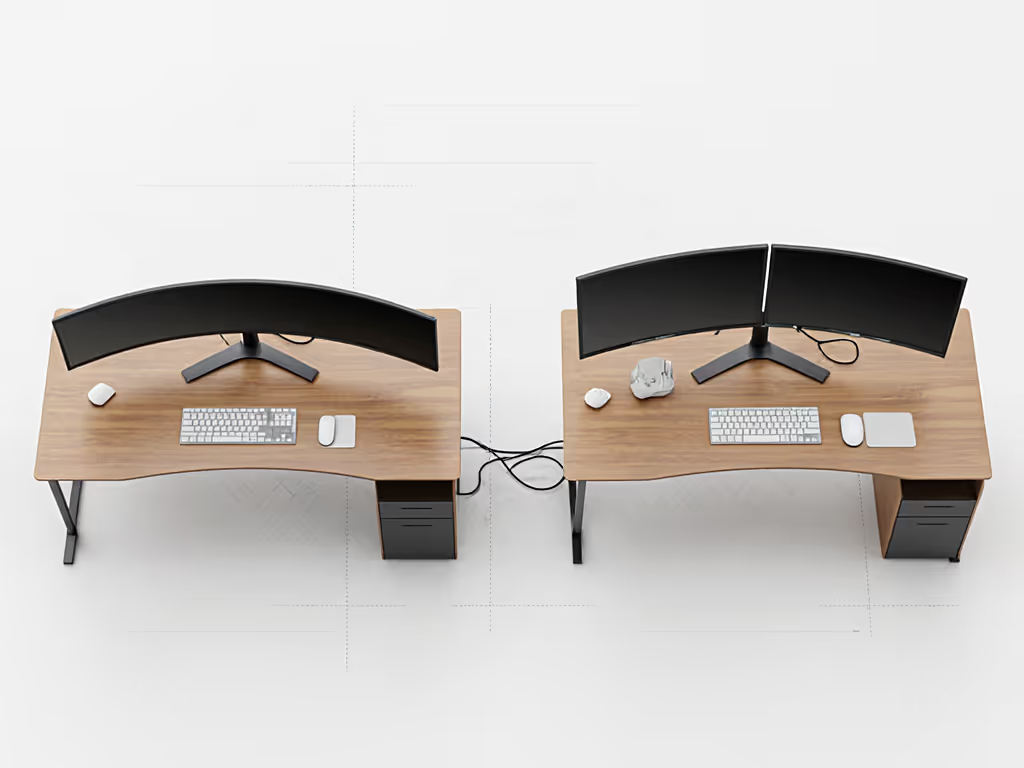
Ultrawide = compact width, moderate depth. Best for small desks, minimal cable runs to a single input. Heavier weight stresses cheaper arms. Dual monitors = flexible positioning, lighter per unit. Takes more width but allows independent rotation and easier repositioning. Can daisy-chain via DisplayPort, reducing cable clutter.
--
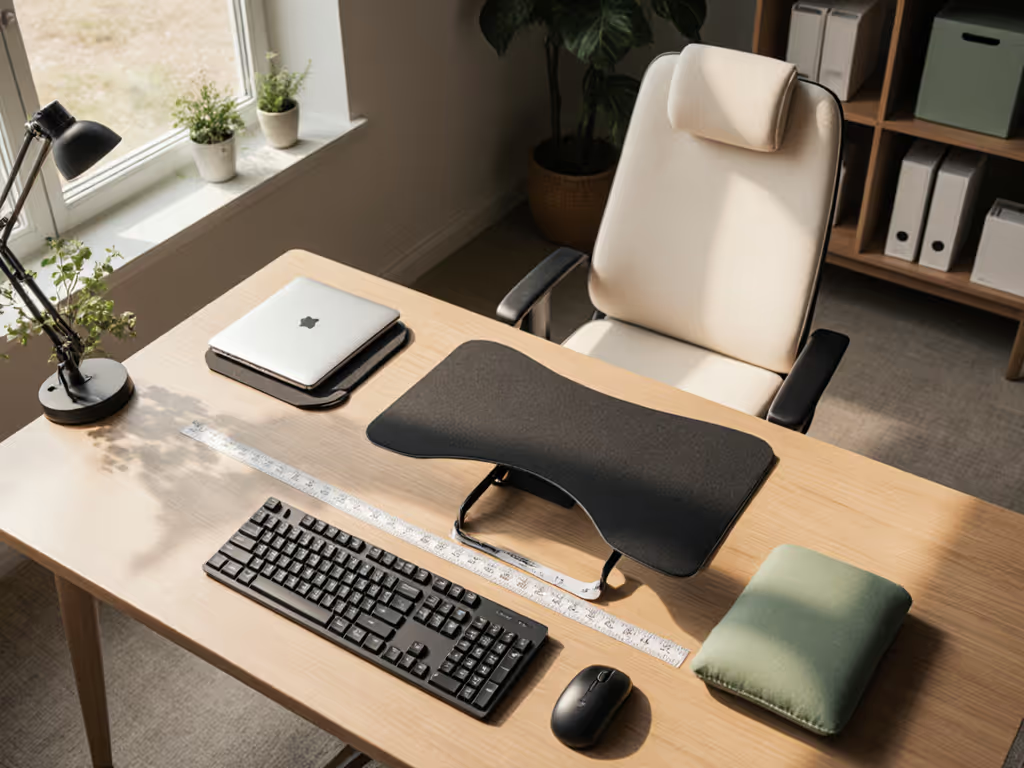
3. Test Ergonomic Viewing Distance and Angle
Measuring your desk is step one. Measuring your viewing comfort is step two, and it's often overlooked.
Calculate ideal viewing distance:
- Ultrawide (34-38 inch, 3440x1440 resolution): Optimal viewing distance is 28–36 inches from your eyes to the monitor center.
- Dual 27-inch (4K, 16:9): Optimal viewing distance is 24–32 inches per monitor.
How to validate on your desk: Sit in your chair at your normal working height. Measure from your eyes to where the monitor(s) would rest. If your desk depth is under 24 inches and you need an ultrawide, you'll sit closer than ideal, increasing eye strain. If your desk is deep (28+ inches), both setups work; dual monitors give you more angular flexibility, since each can tilt independently. For ultrawide-specific placement and accessory tips, see our ultrawide monitor ergonomic blueprint.
Ergonomic checklist:
- Monitor center aligns with your eye level when seated (top of monitor ~15-20 degrees above horizontal eye line)
- No neck rotation needed; your gaze is straight ahead to the center, not to the far edges
- Arms can rest on your desk or armrest; keyboard and mouse don't fight for space
- If using a monitor arm, the arm can reach your preferred viewing distance without bottoming out or over-extending
Why this matters: Ultrawides demand more head rotation at close distances (edge-to-edge content is wider), while dual monitors allow independent angles, reducing strain for side-by-side tasks. On shallow desks, dual monitors often win on comfort. Productivity with ultrawide monitors improves only when viewing distance and angle are validated first.
--
4. Map Your Cable and Power Routing
Cable chaos is invisible until it becomes physical chaos. Before choosing a setup, trace your power paths. For measured solutions, see our cable management systems comparison.
Ultrawide advantages:
- Single monitor input (USB-C or DisplayPort), one power cable, one stand footprint
- Simpler cable bundle; less opportunity for clutter
Ultrawide challenges:
- Heavier cable load at the arm anchor; requires robust cable management (velcro straps, under-desk channels)
- If the arm is spring-loaded, excessive cable weight can reduce range and stability
Dual monitor advantages:
- Two independent power sources allow flexible placement (one monitor near one edge, one near another)
- Can route cables separately to reduce bundle stress
- One monitor can stay powered while the other powers down (useful for dual-task workflows)
Dual monitor challenges:
- More cables = more planning. Two power cords, two video cables, potentially two USB hubs
- Bezel gap (typically 0.5 to 0.75 inches) means cables must navigate around both stands or run under-desk
Starter safe zones for best cable management system:
- Reserve 3–4 inches under your desk perimeter for cable runs (velcro-banded, labeled)
- For clamp-mounted arms, budget 2–3 inches of clearance behind the clamp to route USB and power
- If using a power strip under your desk, position it 12+ inches from the monitor stand area to avoid weight concentration
- Label every cable run with painter's tape or a label maker. Your future self will thank you when you upgrade
--
5. Validate Mount Compatibility and Headroom
Not all monitor arms fit all desks. This step prevents the return that stings: ordering an arm, installing it, and discovering it won't clear your wall or crossbar. If clamping isn't an option, compare monitor stands vs shelf risers to reach proper eye height without drilling.
For ultrawide monitors:
- Weight often exceeds 30 pounds; standard arms (rated for 10–15 pounds) will fail
- Seek arms rated 25–40 pounds with adjustable counterbalance
- VESA hole spacing: most ultrawides use 100×100mm (standard) or 75×75mm; confirm before buying
- No-drill clamp option: ensures the clamp can grip without damaging rental surfaces, a non-negotiable for renters
For dual monitors:
- Each monitor lighter (16–24 pounds typically); standard dual-monitor arms work well
- Dual-arm setups allow 360-degree rotation per monitor; confirm pivot range fits your desk angle
- Check VESA compatibility for each monitor (often mixed sizes; one may be 100×100mm, another 75×75mm)
Key validation test for monitor arm compatibility:
- Note your desk thickness (from Step 1).
- Check the clamp's maximum grip range; if your desk is thicker, the clamp won't secure.
- Measure wall clearance from your desk back edge. If it's less than 2 inches, a top-mount arm or wall bracket isn't viable; stick with a clamp or grommet-based no-drill option.
- If your desk has a crossbar, confirm the arm won't collide when angled downward (a common failure mode that costs time and frustration).
Safe zone checklist:
- Arm rated for monitor weight (not just "fits the VESA")
- Clamp or grommet mount compatible with your desk thickness
- Minimum 2-inch wall clearance for arm extension (or confirm arm won't need it)
- Crossbar collision tested (physically move arm through full range)
--
6. Calculate Your Upgrade Path
One of the biggest decision burdens is fear: will this setup lock me in, or can I grow with it?
Ultrawide upgrade limitations:
- Adding a third monitor requires a separate arm and often new desk real estate
- Switching from ultrawide to dual monitors means selling the ultrawide (resale value drops ~20-30% annually)
- Limited modularity; an ultrawide is an all-or-nothing investment
Ultrawide upgrade advantage:
- Easier transition to higher resolution (3440x1440 → 5120x1440) if you keep the same physical footprint and arm
Dual monitor upgrade flexibility:
- Adding a third monitor is straightforward: mount it on top of the first two (using a stacked arm) or to the side
- Can mix monitor types (4K color-graded on the left, 1080p gaming on the right) without redundancy
- Each monitor can be resold or repurposed independently, which is true modularity
- Easier to downgrade to single-monitor setups if circumstances change
Future-proofing checklist:
- Will you need more than 34-inch width in the next 2-3 years?
- Could your workflow benefit from separate orientations (portrait + landscape)?
- Is resale or reuse flexibility important to you?
- Will you upgrade to a standing desk; do your monitor arms work with standing frames?
If you answer "yes" to 2+ questions, dual monitors offer more flexibility. If you value simplicity and don't anticipate growth, an ultrawide is cleaner now.
Think of dual monitors as upgrade notes written into your desk budget; ultrawide is a single, larger bet.
--
7. Match Setup to Your Workflow and Reality Check
The best setup is the one that aligns with how you actually work, not how you think you should work.
Ultrawide workflow fit:
- Continuous, related-task workflows (design, video editing, coding with side-by-side windows, content creation)
- Benefit: unified workspace, no bezel interruption, easier eye flow across a single canvas
- Constraint: requires head/eye rotation to see edges; less ideal for rapid context-switching between unrelated apps
Dual monitor workflow fit:
- Multi-app, context-heavy tasks (email + spreadsheet, reference + active work, streaming while working, gaming with chat)
- Benefit: separate focus zones; easier to dedicate one screen to each role; can turn off one monitor to reduce distraction
- Constraint: bezel gap creates visual separation; requires two independent inputs and cable planning
Cable-hiding reality: Both setups require discipline. If you won't commit to under-desk channels, velcro straps, and labeled runs, cable chaos erupts equally fast. The difference: ultrawide has one cable bundle (simpler to hide); dual monitors have two (requires more planning). The question isn't which setup hides cables better, it is whether you'll actually invest the time to hide them.
--
Conclusion: Map Your Desk Before Your Cart
The decision between ultrawide vs dual monitor desk setup is not primarily about specs or refresh rates. It's about fit. Your specific desk, your actual viewing distance, your cable paths, your growth plans, and your workflow. The comparison across multi-monitor workspace options is most useful when grounded in these measurements.
Your starter checklist to keep on hand:
- Desk depth _____ inches | Desk width _____ inches | Desk thickness _____ inches
- Distance to back wall _____ inches | Crossbar height _____ inches (if applicable)
- Viewing distance from eyes to monitor _____ inches (28-36 for ultrawide, 24-32 for dual 27-inch)
- Monitor arm weight rating required: _____ pounds
- Clamp max grip: _____ inches (fits my desk thickness: yes / no)
- Wall clearance available: _____ inches (sufficient for arm extension: yes / no)
- Upgrade flexibility needed in 2–3 years: ultrawide / dual / unsure
Next steps for deeper exploration:
Visit online desk dimension databases to compare your measurements against real products. Join workspace communities and ask specific questions tied to your measurements (not "is ultrawide good?" but "does a 34-inch ultrawide fit a 22-inch-deep desk?", and the answers will be precise). Before adding anything to your cart, validate against this checklist. If even one dimension misses, hold off. Ask for validation from others with similar setups.
The right setup is the one that arrives measured and stays; the wrong one arrives, creates friction, and leaves you reshuffling or returning. Your workspace is a tool for clarity and focus. Map your desk before your cart, and watch the decision transform from analysis paralysis to confident action.